Users can save multiple versions of any content item built in Pyramid, and then retrieve and edit those versions, independently of the current version of the item. This provides users with an effective and simple way of tracking content changes, getting access to previous iterations of specific content items without having to restore the entire repository database as a whole, and continuing the development of content without the risk of losing or deleting the originals.
Specifically, versioning:
- Allows users to keep different copies of their content items without having to create "replicas" with different names or in different folder locations.
- Improves governance where different content items in a large project can change over time and there is a need to track its changes in a convenient framework.
- Allows users to Restore older content if newer changes are erroneous (effectively an undo), as well as providing the ability to view previous versions without overwriting the current version.
Creating Versions
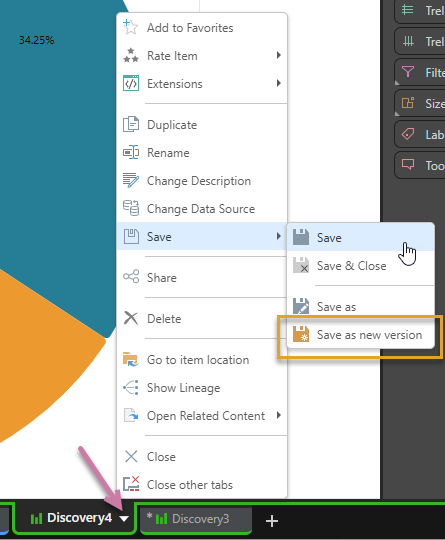
The versioning mechanism is available for content that has been previously saved using the standard save process. To save a new version of content that's been edited (rather than permanently overwriting the original), use the Tab Menu from the item's tab in the App Tab interface. Select Save > Save as New Version from the context menu (purple box below).
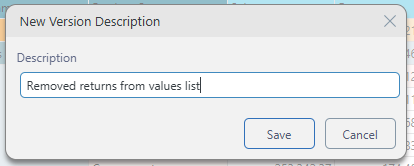
You will then be prompted to enter a description for this new version, so it can easily be tracked in the Content Manager:
Overwrite Warning
When you click Save, if you see a message about an existing file, you may be in danger of overwriting a file that's already in that location. In this case, you can use the options to Replace the original, create another version of the file (OK), or Cancel to choose a different name or location.

- Replace: Overwrites the existing file with the new one. The previous version is lost.
- OK: Save the new file as a separate version, preserving both the original and the new file as different versions.
- Cancel: Don't save. In this case, the Save dialog remains open so that you can rename the file or choose a different location for it.
Accessing Version History
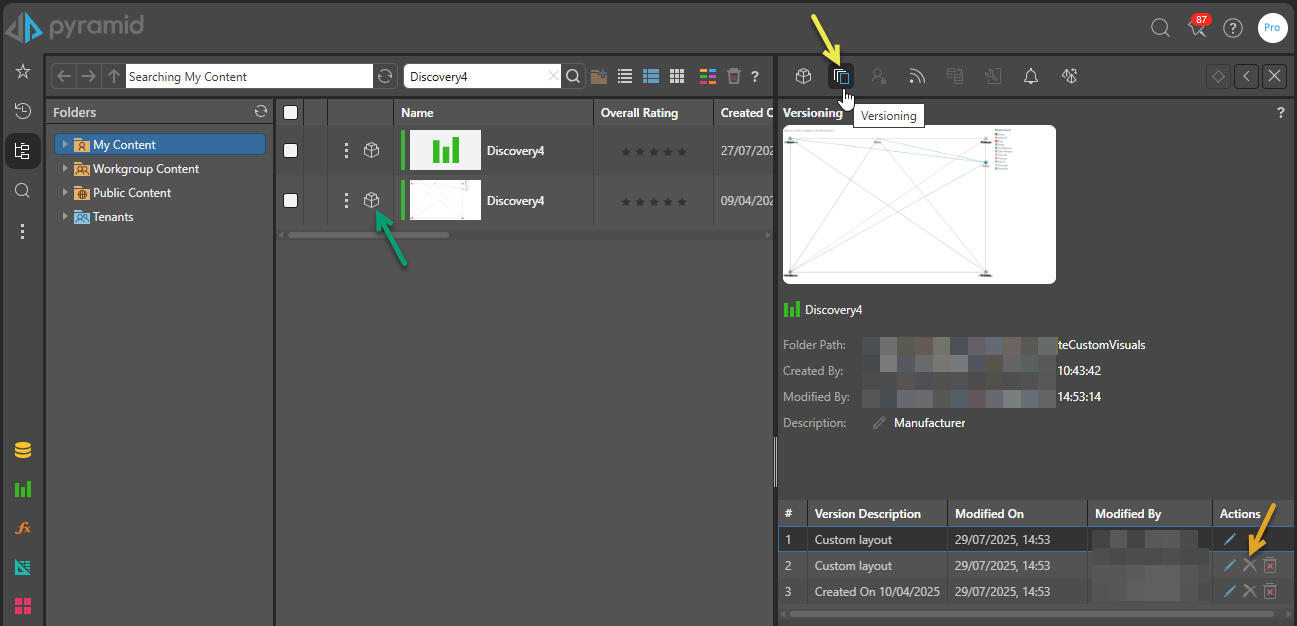
To view versions of a content item, open its Action panel (green arrow below) and then click Versioning (yellow arrow) to see all the details and versions stored for the item, including details of the version description, modification date, and modifier.
Version Actions
Edit a Previous Version
To open a specific version of an item, click the edit icon for a given version in the list. The item opens in the App Tab interface, like any other item. Here, the content can be used and manipulated as needed.
Save a Previous Version
If you choose to save an open version of a content item, the old version will replace the existing one and you'll receive a warning that you are about to overwrite the current version:
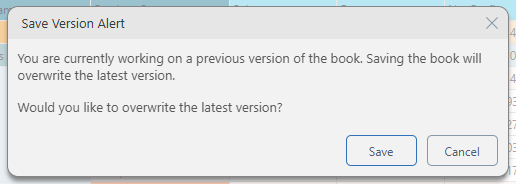
- To overwrite the current version with your changes, click Save.
- To save the current version as a new file with a different name and location, click Cancel and then choose Save as on the Save menu instead.
- To save the current version as a new version of the current file, click Cancel and then choose Save as new version on the Save menu instead.
Tip: To restore a previous version of the content item, click Edit to open the previous version that you want to restore and then select Save as new version from the Save menu to save that as the latest version.
Delete a Previous Version
To delete a previous version, click Delete in the Action Panel version list (orange arrow above).
Managing Deleted Versions
 Administrators can view and manage the deleted items by enabling the Show Deleted Items option. Items that have been deleted are shown in the Versions list using a strikethrough style:
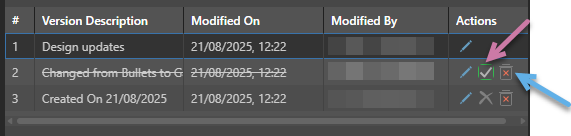
The following Actions are available for deleted items:
- Restore (purple arrow): Recover a deleted item and return it to its original location.
- Purge (blue arrow): Permanently delete the item so it cannot be recovered. For more information about Purging, see Delete, Purge, and Restore for Pros.